> ## Documentation Index
> Fetch the complete documentation index at: https://docs.checkypro.com/llms.txt
> Use this file to discover all available pages before exploring further.
# 9. Connect Shopify
### 9.1 Overview
This guide explains how to connect your Shopify store to your Checky Pro account.\
Once connected, Checky Pro will sync your store data in real time to provide insights, analytics, and reporting.
### 9.2 Requirements
Before you begin, make sure you have:
1. An active **Checky Pro** account
2. **Admin access** to your Shopify store
3. A **stable internet connection**
### 9.3 Log in to Checky Pro
1. Go to [https://app.checkypro.com/login](https://app.checkypro.com/login)
2. Log in with your Checky Pro credentials
### 9.4 Enter Your Shopify Store URL
1. Locate your Shopify store URL , it should look like:
`yourstorename.myshopify.com`
Copy only the part **before** `.myshopify.com` (e.g. `yourstorename`)
2. Paste it into the input field in Checky Pro
3. Click **Continue**
### 9.5 Authorize Checky Pro in Shopify
1. Log in to your **Shopify Admin**
2. Go to **Settings → Apps and sales channels**
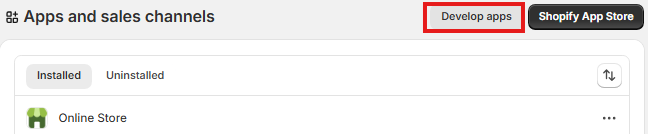
3. Click **Develop apps**
 4. Click **Create an app**
5. Enter: **Checky Pro** as the app name
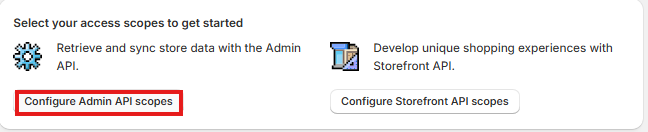
6. Click **Configure Admin API scopes**
4. Click **Create an app**
5. Enter: **Checky Pro** as the app name
6. Click **Configure Admin API scopes**
 7. Select the following permissions:
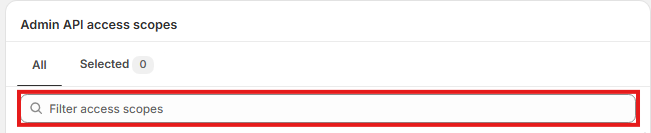 **Customers** → Read & Write
**Discounts** → Read & Write
**Draft orders** → Read & Write
**Orders** → Read & Write
**Products** → Read & Write
**Themes** → Read & Write
8. Click **Save**
9. Click **Install app**
**Customers** → Read & Write
**Discounts** → Read & Write
**Draft orders** → Read & Write
**Orders** → Read & Write
**Products** → Read & Write
**Themes** → Read & Write
8. Click **Save**
9. Click **Install app**
 ### 9.6 Copy API Credentials
1. After installing the app, Shopify will generate credentials
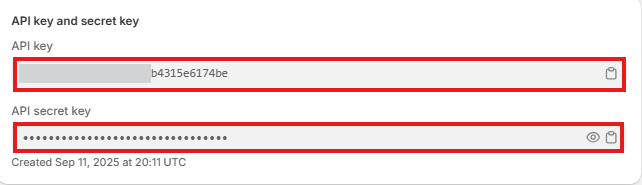
2. Copy the following:
* **API Access Token**
* **API Key**
* **API Secret Key**
### 9.6 Copy API Credentials
1. After installing the app, Shopify will generate credentials
2. Copy the following:
* **API Access Token**
* **API Key**
* **API Secret Key**
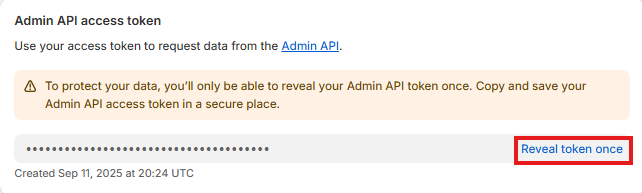 3. Go back to CheckyPro and paste these values into the corresponding fields **(Step 4 of the setup)**
4. Click **Submit & Verify**
**Congratulations, you are all set!**
3. Go back to CheckyPro and paste these values into the corresponding fields **(Step 4 of the setup)**
4. Click **Submit & Verify**
**Congratulations, you are all set!**